Showing posts with label Rex files. Show all posts

Friday, March 4

Loop Loft 50% Off Rock & Pop


The Loop Loft is rockin' a big sale this weekend, with all pop, rock and yes, dirty drum loops a whopping 50% off! With a massive collection of grooves and fills in each downloadable pack, it's like having a live, tattooed rock drummer at your fingertips.... except our loops won't drink all of your beer or sleep with your girlfriend. We promise.

Friday, May 28

Siel MDP-40 Rex Files on Reason Patch a Day!


I sent Robb over at Reason Patch-a-Day some audio clips of one of my favorite rhythm machines, the Siel MDP-40, a week or so back so he could Recycle them into Rex files for us! There's six clips of the Siel run thru a couple of my favorite effects pedals. Go get them!

Sunday, February 14

aphex-twin aproach and using Dr-Rex


using the Dr Rex on Quad speed. This might be a bit of a 'problem' topic, since rexes are based on tempo. In this video i'll explain how to solve the issue
hydlide24

Monday, August 24

Dr. Rex Octave Fun


One quite simple trick to breathe new life into Rex files is changing the octave. But if you read this blog regularly you know I don't just stop at simple. So today we're going to talk about controlling the octave of Rex files in Dr. Rex. To get started find a Rex loop you like and hit the "PREVIEW" button on Dr. Rex. While the beat is looping try twisting the Octave control dial ("OCT" dial just below the "OSC PITCH" banner) to find which octaves sound best to you. Once you get an idea of that it's time to set-up a combinator. To do this left click on your Dr Rex and choose "combine". Now that you have yourself a combinator you'll need to create a Matrix Pattern Generator (but when creating the Matrix make sure to hit the "shift" button on your computer keyboard, because we don't want this controlling either the combinator or Dr. Rex just yet.) But we'll leave the Matrix be for now.


Okay, you'll want to open up the combinator's control surface at this point, by hitting the "Show Programmer" button. Inside of the programmer, next to Rotary 1, assign "Osc Octave" by clicking on the middle space. Once that's picked you'll notice the "Min" and "Max" amounts are automatically set-up for 0 to 8. You'll want to assign these to the lowest octave you liked the sound of and the highest (I've found that I usually like my "Min" on 2 or 3 and "Max" on 5 or 6.) Once you've chosen your Octave spread in the programmer that can be closed. Next hit "Tab" (on your keyboard), and on the backside of the combinator drag the CV cable from the Matrix's "Curve CV' out to the Combinator's Rotary 1 input. With this in place turn the dial next to Rotary 1 all the way to the right. You'll also want to switch the Matrix from "Uni-polar" to "Bi-polar" (the black switch two sockets over from "Curve CV').


Now our combinator is set-up and it's time to draw in patterns on the Matrix! Flip your rack back to front side (using the "Tab" key again) and switch the Matrix from "Keys" to "Curve" (switch just to the left of Matrix LCD.) By default the Matrix is set-up on 16 steps with all the bars in the pattern set downward to the bottom. I generally will draw these bars into the middle and then play around with the settings until I find something I like. Try different steps and resolutions as well, the real fun is in the exploration! If you find multiple patterns you like, you can always use the different patterns in the Matrix to store them and set up a knob on the combinator to switch between them (like in the combinator I've set-up for you on the bottom of this post.) Another option besides a Matrix is using a LFO. Either the one onboard in the Dr. Rex or by creating a Malstrom and using their built in Mods. You set this up in a similar fashion, by dragging the CV cable from the LFO/MOD out to the Rotary 1 input. Dig in!


Here's an audio example:


Audio example with 2 bars regular, 2 bars with octave shifting, 4 bars with bass accompaniment (bass patch courtesy of Reason Patch A Day, with Scream tube amp setting.)

Below's a combinator I've set-up to get you started with multiple patterns. Just press "PREVIEW" on Dr. Rex (inside the combi) and play (space bar) to check out the patterns. Or use it as a template and choose your own Rex file. Check it out:


Octave Rex

Thursday, August 20

Rex Files Redux Part 2


To make up for yesterday's post and continue with our Rex files exploration in Reason..... today I have a combinator for you that I call the Live Drum Box. This combi uses an NNXT as the host for our Rex file and is hooked up to a RPG-8 arpeggiator unit. This enables the arp patterns to "play" the beats for you when pressing down the keys. Now this in itself is pretty cool, but that's not all. Hooked up to the Arp unit is a Matrix pattern generator, connected on the backside to the "Rate/Resolution" and "Octave Shift" CV ins (using the "Curve" and "Gate" CV outs on the Matrix, respectively.) What does this do? Turns what would be a vanilla pattern into something glitchy and groovy! Draw in a line of 32nd notes, shift the pattern an octave for a beat, or best yet combine them for something really interesting. I've set up 9 patterns for you on Rotary 2 to get you going (with the far left position on the Rotary set to disable the patterns). A couple other things of note.... Mod Wheel controls the rate of the Arp, Pitch Bend adjusts the Frequency, and Rotary 1 controls the Arp mode setting (far left is "Manual" position.) In the example I used Drb 23-Restep, from the Reason Factory Sound Bank, to load a new Rex file use the "browse patch" button on the NNXT's face plate (just to the left of the LCD.) Drb-23 has 69 slices, which means it goes from C-1 to G#-6. Keep in mind that all Rex files loaded into the NNXT start on the C-1 key but the number of slices in the file determines how far up the keyboard the patch will play (makes sense eh?) The rest of the combi's controls I think are fairly self explanatory. But don't forget about the controls on the front of the RPG-8... especially the "Octave" control, try setting it on different octaves for added aural excitement. And definitely explore using the pattern sequencer - when the RPG-8 is set to a fast rate this comes in handy... just press the "pattern" button and try taking out a few notes here and there to really up the ante in dynamics. I hope you enjoy playing with this combinator as much as I do!

Download the combinator here:


LiveDrumBox


Stay tuned this weekend for a new edition of "10 questions" featuring sound designer/composer Tom Pritchard!

Wednesday, July 22

Rex Files Redux


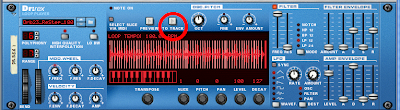
Last time we spoke a bit about exploring Rex files in Reason and this evening I'd like to delve a little deeper. One thing I didn't realize when I first started to use Reason was that you could play Rex files with an NNXT sampler. This enables you to do a couple of things, most importantly - looping! The easiest way to set this up is to create a Dr REX and search for the file you want to mess around with. Once you've found a good candidate, go ahead and set your L and R markers for length and copy to track your file (using the "to track" button on Dr Rex, see above.)
Now you'll want to create a NNXT and load the rex file (using browse patch button, just left of NNXT's fake LCD). All you need to do to play the rex file with the NNXT sampler is drag the track in the sequencer from the Dr Rex to the NNXT.
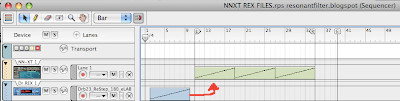


Okay, this is where the fun begins. When the NNXT is expanded (triangle on bottom left of sampler) you have access to each step in your beat and can use the myriad of options available on the NNXT sampler to play with your audio.

Trick #1 is grouping sounds to different audio outputs. To do this highlight the clip you want with your mouse and choose the desired output with the output knob at the bottom right of the LCD panel. And by the way, if you aren't sure about which clip, clicking on the name of the sample while pressing "option" will play the file. I generally will drag and drop the files I want together to the bottom and top of the lcd panel, so I can assign the outputs all at once, by pressing "shift" while clicking on them. Why would you want to have separate audio outs? One reason is to have different effects on different samples. How about a delay on the highhats. A Scream distortion on the snares. Another Scream emulating a Tube amp on the kicks. The possiblities are endless.

Trick #2 is my favorite of all... Using the "loop start" and "loop end" knobs to creating clicks, cuts and glitching effects. Now you'll need to highlight the sample you want to play with again and turn the "play mode" knob to "FW-LOOP". Try different settings to get anything from buzzes to flams to stuttering rolls. I've found for drums you generally want to set the end for something under 50% and even lower for glitching sounds. Unfortunately there's no edit automation for the knobs directly under the LCD, so you have to set it up for the track, or use a couple of NNXTs loaded with the same files for different glitching effects on the same sample.
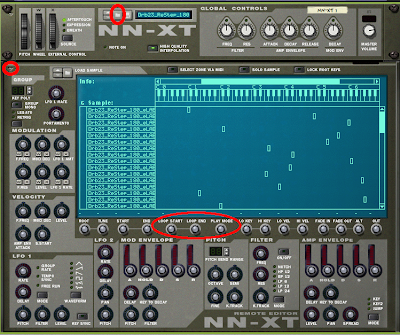


Trick #3 is using the LFO section (bottom left of NNXT remote editor) to create filtering, tremolo, and pitch-shifting effects. As with the last two, you'll want to highlight the sample you want to edit and then try playing around with these settings. There's no hard or fast rules here and the easiest way to find something you like is to tweak the knobs while you have the beat looping. The LFO has 5 different waveforms to choose from, the saw and square being my favorite of the bunch. Keep in mind the rate can be tempo sinked up to 1/32 if you are looking for a fast tremolo or warbling pitch effect. Of course you can choose free run on the LFO's rate as well.

Reason Tip - Rex Files


Dr Rex is an often overlooked instrument in Propellerhead's Reason Software. At first glance it looks like a mere sample player, but it's the things you can do with it that are the most interesting. One of my favorite tricks with Dr Rex and Rex files in general is to take one file's pattern, another file's sound, and combine them. Now when doing this the main thing you need to look at is the number of slices in the patterns. Are they similar? You don't want to play the sound from a file with 8 slices on a pattern with 16, obviously. You also want to be aware of the kick and snare placement. Do they match? The easiest way to check these things out is to find the pattern you like, copy it to track and press play; while the sample is playing browse for your new sound file (with auto-play disabled in browser).

For the audio example, I took a free loop I downloaded at Ryan Gruss.com and matched it up with a Rex file from the Reason Factory Soundbank. The first 4 bars is the Gruss loop, followed by the 4 bars of Drb30 from RFSB, and the final four are those two added together.


And speaking of Gruss Loops, if you love Rex Files as much as me, you really should sign up for Gruss Packs!

ryangruss.com - loop pack demo from Ryan Gruss on Vimeo.